A.4 The matplotlib package for visualization#
Basic graphs#
The main package for plotting in Python is called matplotlib. It is a comprehensive plotting package that is highly versatile and can be used to make fantastic plots and animations. The gallery on the matplotlib web page is a great resource to discover many of the matplotlib capabilities.
Most of matplotlib’s plotting capabilities are available in the subpackage pyplot, which is commonly renamed as plt in the Python community.
import matplotlib.pyplot as plt
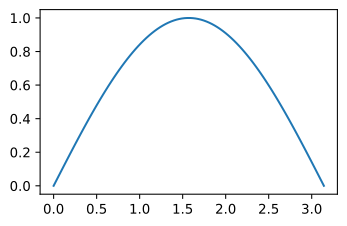
Figures are shown inline in a notebook by default (rather than in a separate window). The following two lines of code compute \(\sin(x)\) for 100 values of \(x\) between 0 and \(\pi\), and then plot \(\sin(x)\) vs. \(x\).
x = np.linspace(0, np.pi, 100)
plt.plot(x, np.sin(x));
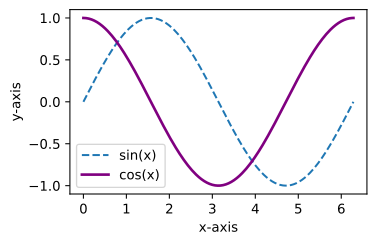
The plot function has many, many options, as may be seen from the documentation. A more complex graph with multiple lines, labels along the axes, and a legend is shown below. matplotlib uses a different color for each line that is plotted. The default colors are called C0, C1, C2, etc. Alternatively, a different color can be specified.
x = np.linspace(0, 2 * np.pi, 200)
y1 = np.sin(x)
y2 = np.cos(x)
plt.plot(x, y1, '--', label='sin(x)')  # plotted with default color C0
plt.plot(x, y2, color='purple', lw=2, label='cos(x)')  # linewidth (lw) is 2
plt.xlabel('x-axis')
plt.ylabel('y-axis')
plt.legend(); # selects best spot for legend unless loc is specified
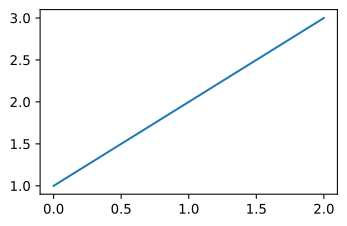
Most matplotlib functions return a handle to the plot item that is created. For example, the plt.plot function returns a list with a handle to the line that is plotted
a = plt.plot([1, 2, 3], label='hello')
print(a)
[<matplotlib.lines.Line2D object at 0x1351ef9d0>]
The cryptic statement such as [<matplotlib.lines.Line2D at 0x10a9063d0>] is a list with a handle to the memory location of the line that was plotted. For example, the command plt.xlabel adds a text object and returns a handle to this object. The properties of the item that the handle refers to can be modified with the plt.setp command (although this is not done frequently in this book). In the following example, the setp function is used to increase the line width and color of the plotted line.
a = plt.plot([1, 2, 3])
plt.setp(a, color='hotpink', lw=4);
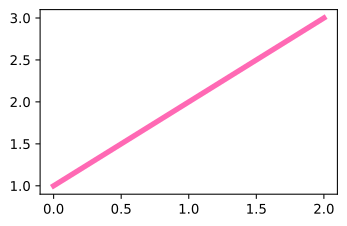
Figures can be saved to a file using plt.savefig(’/mydirectory/myfigure1.png’) where mydirectory is the directory name. Forward slashes must be used to separate directory names. The file type is inferred from the file extension (png, eps, and svg).
Contour plots#
Two-dimensional data can be visualized with a contour plot. For example, consider the following function for the head \(h\) as a function of the horizontal coordinates \(x\) and \(y\)
A contour plot of the head is created in a window with lower-left corner \((x, y) = (−200,−200)\) and upper-right corner \((x, y) = (400, 200)\). A grid of \((x, y)\) values is defined first using the np.meshgrid function, which creates the two-dimensional arrays x and y. The head is computed at each \((x, y)\) location. Before contouring, a figure is created with plt.subplot and using the keyword aspect=1 to make sure that the horizontal and vertical axes have the same scale (so that a circle looks like a circle rather than an ellipse). The head values are contoured with the plt.contour function; 20 head values are contoured.
x, y = np.meshgrid(np.linspace(-200, 400, 100), np.linspace(-200, 200, 100))
h = 2 / np.pi * np.log(x ** 2 + y ** 2) - 0.01 * x - 5
plt.subplot(111, aspect=1)
plt.contour(x, y, h, 20); # draw 20 contour lines
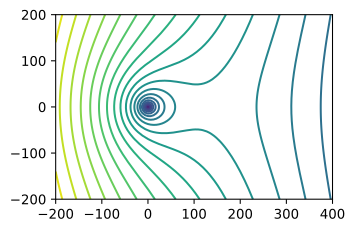
The head values that are contoured can be specified with a list or an array. First, the minimum and maximum values of the computed head are found with the np.min and np.max functions.
print('min:', np.min(h))
print('max:', np.max(h))
min: -4.1046611143428455
max: 4.18729839195133
The head is contoured for values from -3 m up to 6 m with steps of 0.5 m (you don’t have to be very precise with the min and max; values for which no contour exists will be skipped). The handle that is returned by the plt.contour function is stored and passed to the plt.clabel function to plot labels along the contours. The format of the labels is specified as fmt='%.1f', which stands for floating point numbers with 1 decimal place.
plt.subplot(111, aspect=1)
cs = plt.contour(x, y, h, np.arange(-3, 6, 0.5), colors='C0')
plt.clabel(cs, fmt='%.1f');
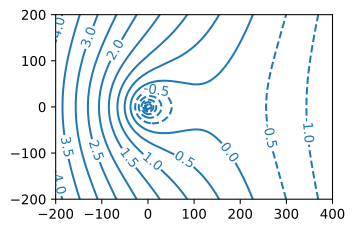
The color of all contour lines is specified as colors=’C0’, and the contour lines for negative values are, by default, dashed. This latter behavior can be overridden by specifying the keyword argument linestyles='-' of plt.contour or by changing the value of the default matplotlib parameter contour.negative_linestyle (see the matplotlib documentation).